
For participants
Join a signup
Choose what to bring or how to help, then save your place. No account needed.
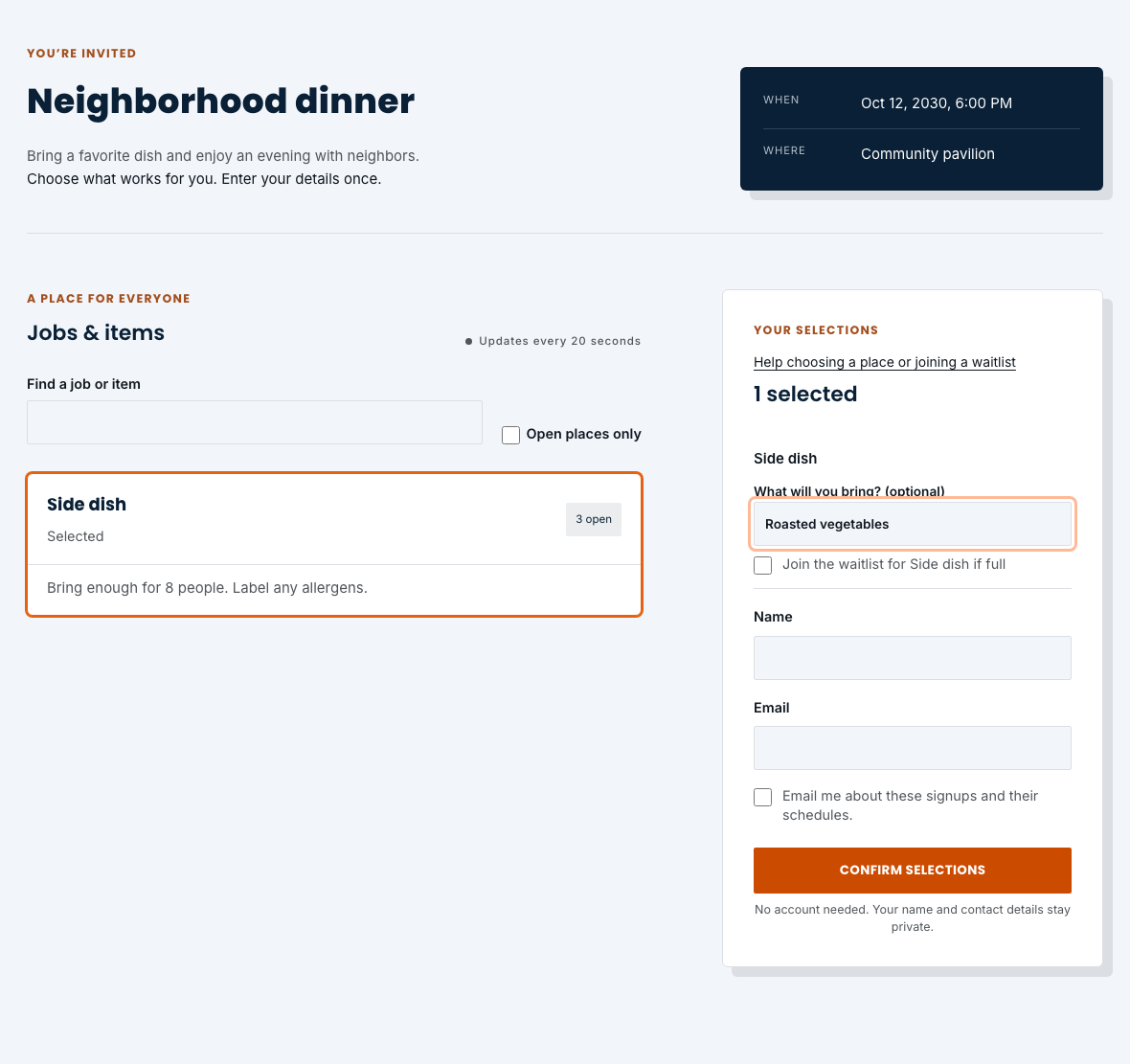
Choose your jobs or items
- Open the signup link shared by your organizer. Read the event details, location, and any instructions for the jobs or items.
- Select the jobs or items you want. Select one again to remove it. You can choose several places across different events before entering your details.
- Use Find a job or item to search. For a signup with several dates, use Event to narrow the list. Open places only hides filled places; turn it off if you want to look for a waitlist.
Confirm your selections
- In Your selections, review the jobs and dates. For an item, you can add a short note under What will you bring?
- Enter your name and email address. Check the box to receive emails about your signups and their schedules, then choose Confirm selections.
- Check each result: Confirmed means your place is saved. Waitlisted means you are waiting for a place. Anything under Not reserved was not saved; choose Review more openings to find another option.
- Choose Manage signups to review your saved selections. Keep the private link sent to your email so you can return later.
When a place is full or closed
- If the organizer offers a waitlist, select the full job and check Join the waitlist for that selection before confirming. Joining is optional, and each selection has its own choice.
- A waitlist is not a confirmed place. If you become eligible for an opening, you will be notified by email. Review your current status through your private manage link.
- Full places without a waitlist and closed or cancelled events cannot accept new signups. If you cannot find an available place, contact the organizer who shared the link.