
For participants
Manage your signups
Find your private link, cancel a commitment, or add a confirmed event to your calendar.
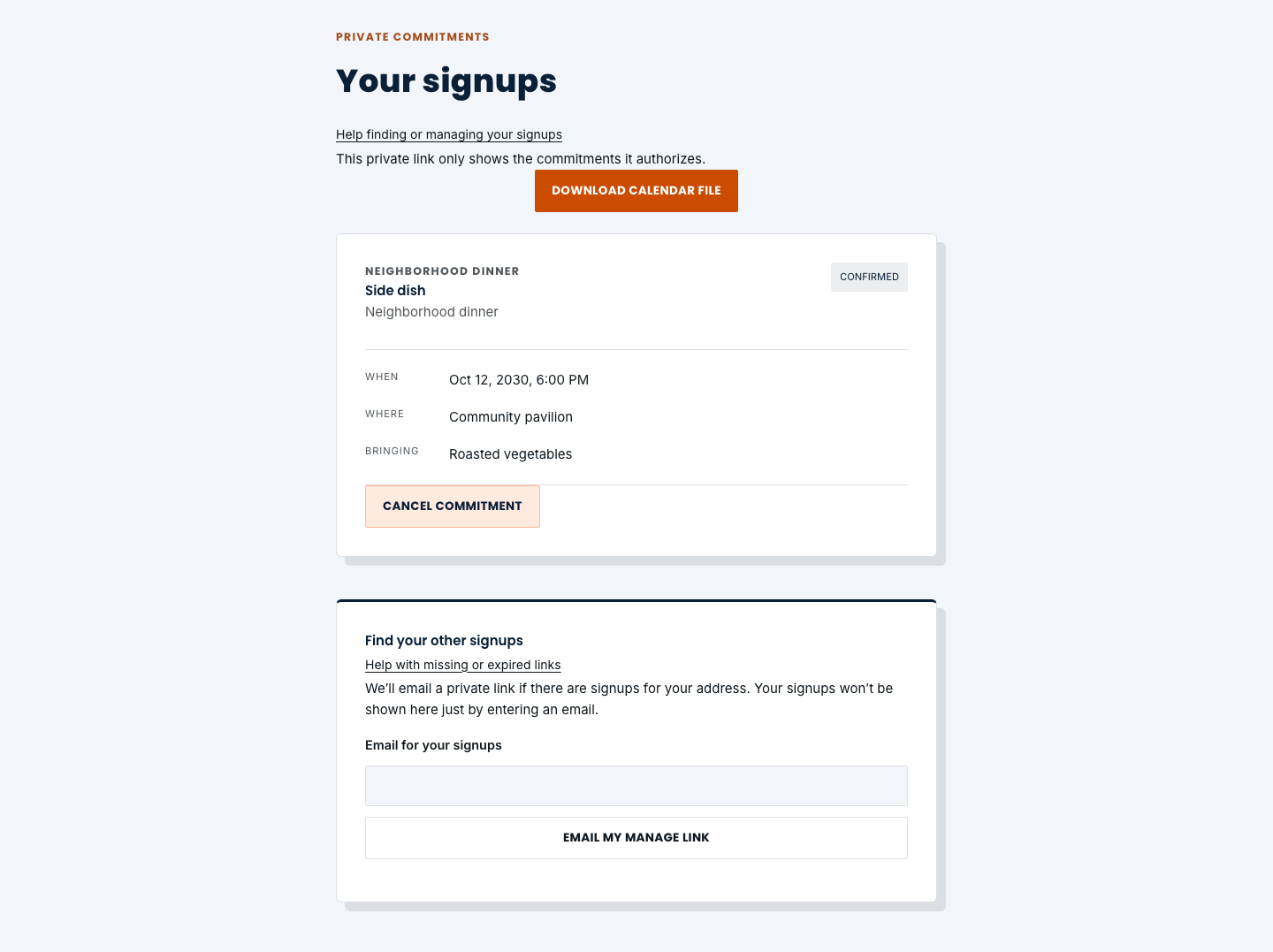
Find your private link
- Open the private manage link in your signup email, or choose Manage signups after confirming a selection.
- If the link is missing or has expired, choose My signups in the navigation. Under Find your other signups, enter the email address you used and choose Email my manage link.
- Check that inbox, including spam or junk, and open the new link. Entering your email on the site does not display your commitments. If you used another address, request a link for that address.
Cancel a commitment
- Find the job and event you no longer plan to attend or bring an item for. Check the date carefully if you have several commitments.
- Choose Cancel commitment, then Yes, cancel to release it. Choose Keep it if you change your mind before confirming.
- Check that the status changes to CANCELLED. Cancelling one commitment does not cancel your other selections. To choose a different place, return to the organizer’s public signup link.
Add events to your calendar
- When your private page includes a confirmed, dated commitment, choose Download calendar file.
- Open the downloaded .ics file with your calendar app and follow its import prompts. Undated commitments do not have a calendar event to add.
- A downloaded file does not subscribe you to automatic updates. After a schedule change or cancellation, use your private link to check the latest details and download the calendar again when available. Review your calendar app for outdated or duplicate entries.
If an event changes
- Read schedule-update emails and check your private page for the current time and location.
- EVENT CANCELLED means you no longer need to attend or bring the item. Contact the organizer for questions about the event itself.